Monday, February 24, 2014

SharePoint 2010 - List inline editing

SharePoint 2010 - List inline editing

How to enable inline editing on list.
1. Go to the list and click on the List in the Ribbon.
2. Click on the "Modify this View"
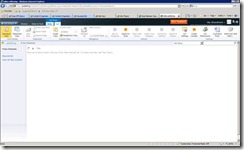
clip_image002
3. Go to the button and expand "Inline Editing", click the "Allow inline editing" checkbox on. And click on the OK button.
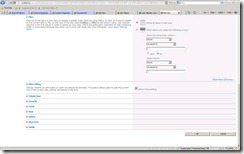
clip_image004
4. Go back to the list (the modified view) and now there is a little 'create new list item' icon at the button of view.
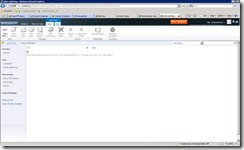
clip_image006
5. Click on the create new list item icon and a inline form is show. Fill out the required fields and click on the save icon.
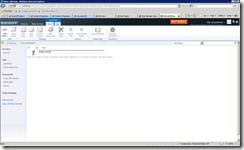
clip_image008
6. And vola, you just create a list item through inline editing :)
Change this settings through API
Find the view (SPView) you wish to change and update the InlineEdit property with the text string TRUE
Remember to .Update() the SPView after updating the property.

Thursday, February 13, 2014

Generate Auto increment number of repeating section infopath

1. Open your infopath form.
2. Add an column named is Sr. No in your repeating table/section.
3. Add a textbox control in the column.
4. Right click on textbox say Textbox Properties.
5. Simply add the following formula to the Default Value field,

count(../preceding-sibling::*[local-name() = "YourRepeatingGroupName"])

OR

count(../preceding-sibling::*) + 1


Thursday, February 6, 2014

Move Sharepoint server from Domain to another domain

Move SharePoint server from Domain to another domain

Move/migrate Sharepoint server  from one domain to another domain
Example: Move sharepont fron mumbai domain to chennai domain.
1.       We have to take the backup of all sharepoint databases and all webconfig and if we have any customization.
2.       Need to take the list of web application pool identity Accounts details.
3.       Now Remove the mumbai domain and join to new domain chennai.com
4.       Create the sharepoint account and add that sharepoint Account to the below groups in the sharepoint machine.
Local administrators,WSS_WPG,WSS_admin and IIS_WPG

5.       Now we need to do 3rd step in SQL machine and add the sharepoint Account in local administrator group and  Open the sql management studio and do the following steps
5a. create a new login for sharepoint account and assign the following roles DB creater and security Admin.
               5b.  Give the DB owner permission for the sharepoint account  for all sharepoint DB using user Mapping option in the user Account property.
6.       Now login to the sharepoint server using sharepoint Account and run the following stsadm commands
6a. stsadm.exe –o updatefarmcredentials –userlogin chennai\testspuser –password test@123
6b. stsadm.exe –o updateaccountpassword –userlogin chennai\testspuser –password test@123 -noadmin
6c. stsadm.exe –o spsearch –farmserviceaccount chennai\testspuser –farmservicepassword test@123
6d. stsadm.exe – o osearch –farmserviceaccount chennai\testspuser –farmservicepassword test@123
6e. the below command for SSP
      Stsadm.exe –o editssp –title SSPname –ssplogin chennai\testspuser –ssppassword test@123
Finally restart IIS with noforce

7.       Check that central admin pool and Sharepoint service account are changed using IIS and Service manager.

8.       Now open the central admin and change the all web application pool account and change the site collection administrator credentails

9.       Then migrate the old  domain users to new domain account using the below stsadm command
9a.stsadm.exe –o migrateusers –oldlogin mumbai\testuser –newlogin chennai\testuser -ignoresidhistory

Sunday, February 2, 2014

InfoPath form to upload an image to SharePoint (no code)

InfoPath SharePoint integration can be implemented in several ways. You can integrate InfoPath 2010 with SharePoint 2010 through SharePoint web services, SharePoint workflows, SharePoint event handlers, or by writing code in InfoPath forms that makes use of the SharePoint client object model or the SharePoint server object model.
Where the two latter means of integration are concerned, you will always have to give your form Full Trust to be able to call those two object models.
If you do not want to write code to integrate InfoPath with SharePoint, your best bet is to explore what theSharePoint web services have got to offer.
Where the uploading of images are concerned, you can either write code to upload images to SharePoint document or picture libraries, or you can use one of two web services: 
1. SharePoint Copy web service, or 
2. SharePoint Imaging web service without having to write code.
Both SharePoint web services offer similar functionality, however, the Imaging web service can be used to upload an image to a SharePoint picture library, while the Copy web service can be used to upload an image to any SharePoint document library.
In addition, if you want to create an InfoPath form that can upload one image to a library, you do not have to write code to get such functionality, and you can use either the Copy web service or the Imaging web service to do so.
Because the Copy web service is a bit more involved than the Imaging web service, this article shows you how to use the Imaging web service to upload an image from an InfoPath form to SharePoint. However, the same techniques you use for hooking up the Imaging web service to an InfoPath form using an InfoPath data connection and rules, would apply to the Copy web service.


In the following 4-minute InfoPath 2010 tutorial video, I show you how easy it is to use rules to connect an InfoPath form to SharePoint's Imaging web service to be able to upload an image to a SharePoint picture library using an InfoPath browser form or Filler form.

Tuesday, January 28, 2014

Difference between SharePoint 2010 and MOSS 2007


SharePoint 2010
MOSS 2007
Look and feel
In SP 2010 look and feel perspective there will be a ribbon where we can have a look and feel like Office 2010
In MOSS 2007 there is no ribbon
Deployment of Web parts
In SharePoint 2010 deploying custom web part is pretty simple i.e. just right click on the solution and click Deploy
In MOSS 2007 you need to drag the dll either to bin or GAC
Silverlight Application
In SP 2010 we can create a Silverlight application directly from Visual Studio 2010
In MOSS 2007 we have to create a web part to host Silverlight application
Shared Database & Service Application
In SP 2010 there is no SSP but there is a concept of Service Application like BCS as one service application, Excel Services as another service application, User Profile as separate service application
General idea is that you have an application for each service, rather than one application with lots of service crammed into it
Own database rather than shared database in SP 2010
In MOSS 2007 we have SSP where we can work around with BI,Search Settings, User Profile Import, Excel Services, Info path
In Database also we use to have separate area for SSP stuff
Easy exports/imports between the forms
In SP 2010 we can update existing information
In MOSS 2007 through we can just read the information and we can't update the existing services
Improvement in Deployment
In SP 2010 we can Deploy through Farm based and solution based solution in SP 2010
In MOSS 2007 there is no such option
Alerts


In SP 2010 alerts were sent only through emails and send alerts to mobile device as SMS message. A New property delivery channel is introduced to indicate, whether the alerts is delivered as Email or an SMS message.
In MOSS 2007 alerts were sent only through emails.
Improvements of events
New events for list creation and web creation
No List and web events in MOSS 207
Getting Items from the list
In SP 2010 through object model we can fetch multiple list data by LINQ query and object model
In MOSS 2007 we can fetch only through object model
Rating
In SP 2010 we can have rating column by default
In MOSS 2007 we should install the feature that is available in codeplex to have rating
Key Word Suggestions
In SP 2010 we can have keyword suggestions
In MOSS 2007 we don’t have any keyword suggestions
Taxonomy
In SP 2010 we can create Taxonomy by using Managed Metadata service
In MOSS 2007 we don’t have taxonomy
Other Features
In SP 2010 we have Power Shell Scripting, JavaScript object model, Chart Web Parts
In MOSS 2007 we don’t have Power Shell Scripting, JavaScript object model, Chart Web Parts
Running stsadm command
In SP 2010 we have to go 14 hive path to run stsadm command
In MOSS 2007 we have to go 12 hive path to run stsadm command

Wednesday, January 22, 2014

PowerShell Script to run visual upgrade on all the migrated site collections

After migrating sites from SharePoint 2007 to SharePoint 2010, first thing usually we do is to visually upgrade the sites to look like SharePoint 2010 sites and not old 2007 look. You can perform this activity through Visual Upgrade page on Site Settings.
But if you have several site collections migrated from 2007 to 2010, the best way could be to use PowerShell to visually upgrade all the sites under all the site collections in a given web application.
You can easily customize this script to run it for single site collection as well.
1
2
3
4
5
6
7
8
#[System.Reflection.Assembly]::Load("Microsoft.SharePoint, Version=12.0.0.0, Culture=neutral,PublicKeyToken=71e9bce111e9429c")

#Add SharePoint PowerShell Snapin which adds SharePoint specific cmdlets

Add-PSSnapin Microsoft.SharePoint.PowerShell -EA SilentlyContinue

$webApplicationUrl = "Name of the Web Application URL"
$webapp = Get-SPWebApplication $webApplicationUrl
Write-Host "Visually upgrading sites under" $webApplicationUrl
foreach ($s in $webapp.sites)
{
     $s.VisualUpgradeWebs()
}
Write-Host "Visually upgrade Completed Successfully"


Common SQL Queries for SharePoint Content Database

– Query to get all the top level site collections
SELECT SiteId AS SiteGuid, Id AS WebGuid, FullUrl AS Url, Title, Author, TimeCreated
FROM dbo.Webs
WHERE (ParentWebId IS NULL)
– Query to get all the child sites in a site collection
SELECT SiteId AS SiteGuid, Id AS WebGuid, FullUrl AS Url, Title, Author, TimeCreated
FROM dbo.Webs
WHERE (NOT (ParentWebId IS NULL))
– Query to get all the SharePoint groups in a site collection
SELECT dbo.Webs.SiteId, dbo.Webs.Id, dbo.Webs.FullUrl, dbo.Webs.Title, dbo.Groups.ID AS Expr1,
dbo.Groups.Title AS Expr2, dbo.Groups.Description
FROM dbo.Groups INNER JOIN
dbo.Webs ON dbo.Groups.SiteId = dbo.Webs.SiteId
– Query to get all the users in a site collection
SELECT dbo.Webs.SiteId, dbo.Webs.Id, dbo.Webs.FullUrl, dbo.Webs.Title, dbo.UserInfo.tp_ID,
dbo.UserInfo.tp_DomainGroup, dbo.UserInfo.tp_SiteAdmin, dbo.UserInfo.tp_Title, dbo.UserInfo.tp_Email
FROM dbo.UserInfo INNER JOIN
dbo.Webs ON dbo.UserInfo.tp_SiteID = dbo.Webs.SiteId
– Query to get all the members of the SharePoint Groups
SELECT dbo.Groups.ID, dbo.Groups.Title, dbo.UserInfo.tp_Title, dbo.UserInfo.tp_Login
FROM dbo.GroupMembership INNER JOIN
dbo.Groups ON dbo.GroupMembership.SiteId = dbo.Groups.SiteId INNER JOIN
dbo.UserInfo ON dbo.GroupMembership.MemberId = dbo.UserInfo.tp_ID
– Query to get all the sites where a specific feature is activated
SELECT dbo.Webs.Id AS WebGuid, dbo.Webs.Title AS WebTitle, dbo.Webs.FullUrl AS WebUrl, dbo.Features.FeatureId,
dbo.Features.TimeActivated
FROM dbo.Features INNER JOIN
dbo.Webs ON dbo.Features.SiteId = dbo.Webs.SiteId AND dbo.Features.WebId = dbo.Webs.Id
WHERE (dbo.Features.FeatureId = ’00BFEA71-D1CE-42de-9C63-A44004CE0104′)
– Query to get all the users assigned to roles
SELECT dbo.Webs.Id, dbo.Webs.Title, dbo.Webs.FullUrl, dbo.Roles.RoleId, dbo.Roles.Title AS RoleTitle,
dbo.UserInfo.tp_Title, dbo.UserInfo.tp_Login
FROM dbo.RoleAssignment INNER JOIN
dbo.Roles ON dbo.RoleAssignment.SiteId = dbo.Roles.SiteId AND
dbo.RoleAssignment.RoleId = dbo.Roles.RoleId INNER JOIN
dbo.Webs ON dbo.Roles.SiteId = dbo.Webs.SiteId AND dbo.Roles.WebId = dbo.Webs.Id INNER JOIN
dbo.UserInfo ON dbo.RoleAssignment.PrincipalId = dbo.UserInfo.tp_ID
– Query to get all the SharePoint groups assigned to roles
SELECT dbo.Webs.Id, dbo.Webs.Title, dbo.Webs.FullUrl, dbo.Roles.RoleId, dbo.Roles.Title AS RoleTitle,
dbo.Groups.Title AS GroupName
FROM dbo.RoleAssignment INNER JOIN
dbo.Roles ON dbo.RoleAssignment.SiteId = dbo.Roles.SiteId AND
dbo.RoleAssignment.RoleId = dbo.Roles.RoleId INNER JOIN
dbo.Webs ON dbo.Roles.SiteId = dbo.Webs.SiteId AND dbo.Roles.WebId = dbo.Webs.Id INNER JOIN
dbo.Groups ON dbo.RoleAssignment.SiteId = dbo.Groups.SiteId AND
dbo.RoleAssignment.PrincipalId = dbo.Groups.ID